Interface
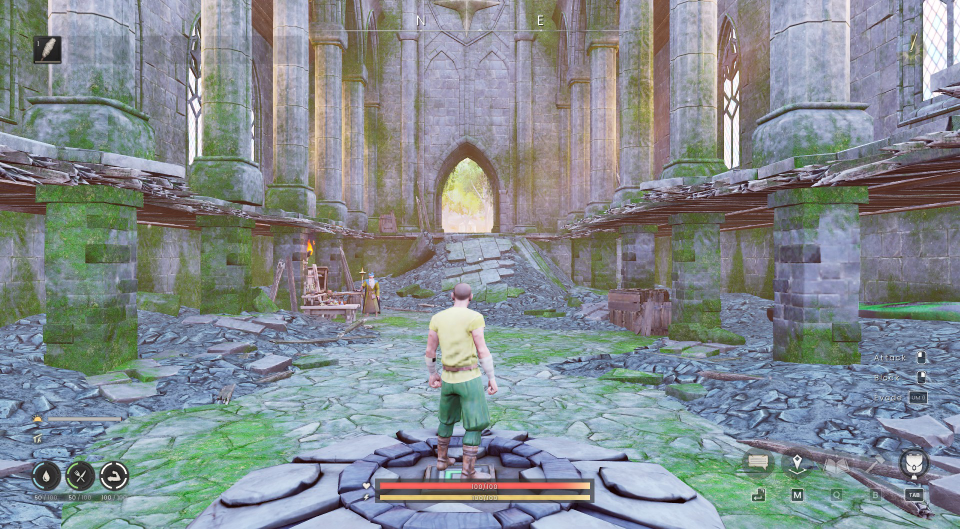
The interface, or user interface (UI), is the screen containing different buttons which, when clicked, display different pieces of information.
Upon spawning in a world for the first time, players can see the following:
- Status - located at the bottom left of the screen and includes (from left to right):
- Health and stamina bar - located at the bottom middle of the screen
- Inventory bar - located at the top right of the screen
- Quick action bar - located at the bottom right of the screen and includes:
- Chat - default keybind is the Enter key
- Map - default keybind is the M key
- Quests - default keybind is the Q key
- Build Menu - default keybind is the B key
- Inventory - default keybind is the Tab key
- Aiming reticle - located at the centre of the screen
- Compass located at the top middle of the screen
- A sundial widget on the top right of the screen that will notify the time of day
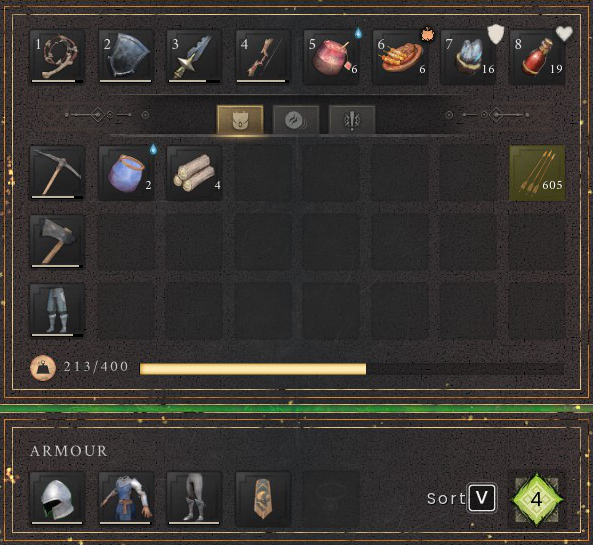
Players can access their items through either the hotbar on the top right-hand side of the screen or by pressing the Tab key on their inventory. After pressing the Tab key (or other key, depending on the key bindings), players can access their inventory and their armour slots. The number on the bottom right of every item indicates the current number of items the player has. All items have a stack limit and can be determined by clicking and dragging each item to another inventory slot. Items have a stack limit of 1, 25, 50, 99, or 999.
In addition, a yellow bar indicates the player's weight. If the player goes over 400 (or 450 with the leggings of lightness), the bar will become red, and the player will become overencumbered. The player will be unable to dodge attacks, run, or walk slower.
Items may have interactable icons to the top-right of each item. This may include:
| Icon | Indication |
|---|---|

|
Resistance to Poison |

|
A pack, containing other items |
.png)
|
PATTERN or VESTIGE blueprint |
.png)
|
PLAN blueprint |

|
Consumable drinks |

|
Primary quest item |

|
Secondary quest item |
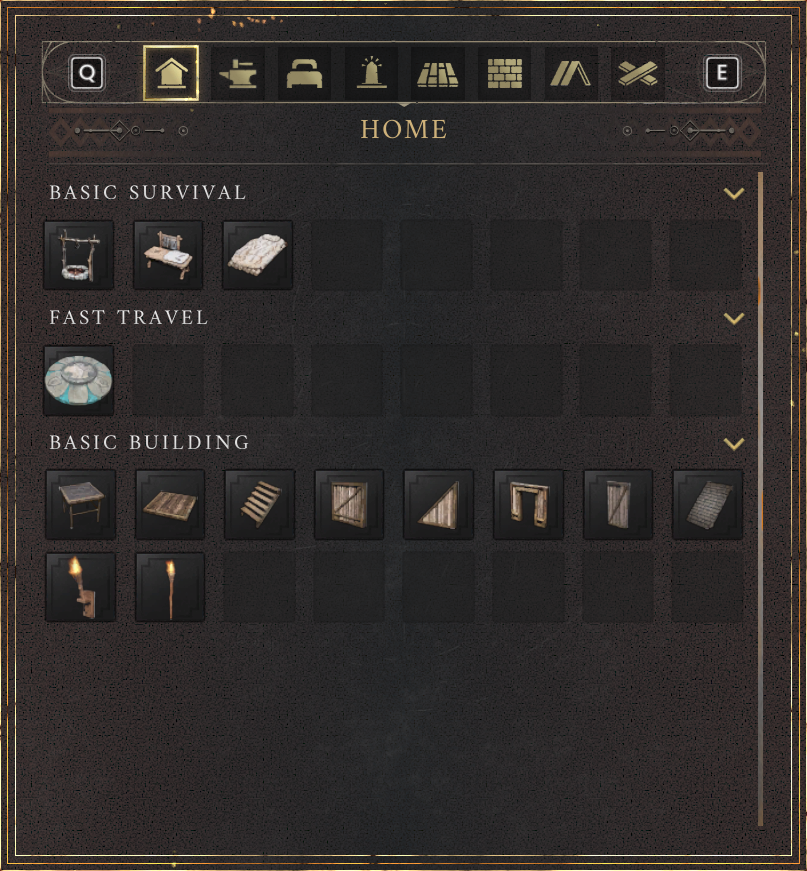
Players can choose any buildings by pressing the default button B on their keyboard and switch to different types of structures/decorations:
Players can quickly choose a spell by pressing the default Q button, opening the quick spells menu. Players can hover over the spell's rune requirements and description to get a better understanding of the spell before casting, and to determine if the player has the required runes before casting. Players can also choose the spells based on their Magic level. After levelling up in a skill, players receive a spell in their spell's main menu.
-
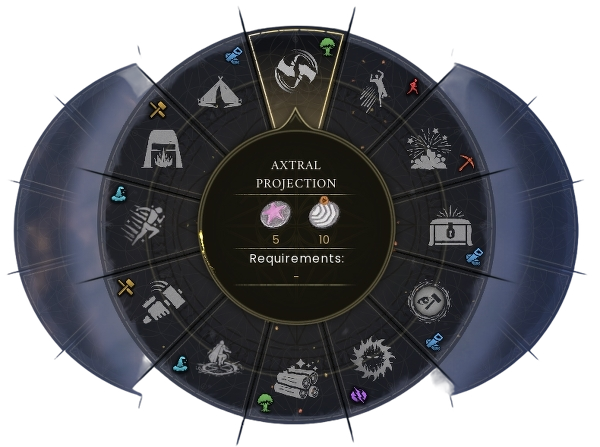 Quick spells interface
 -
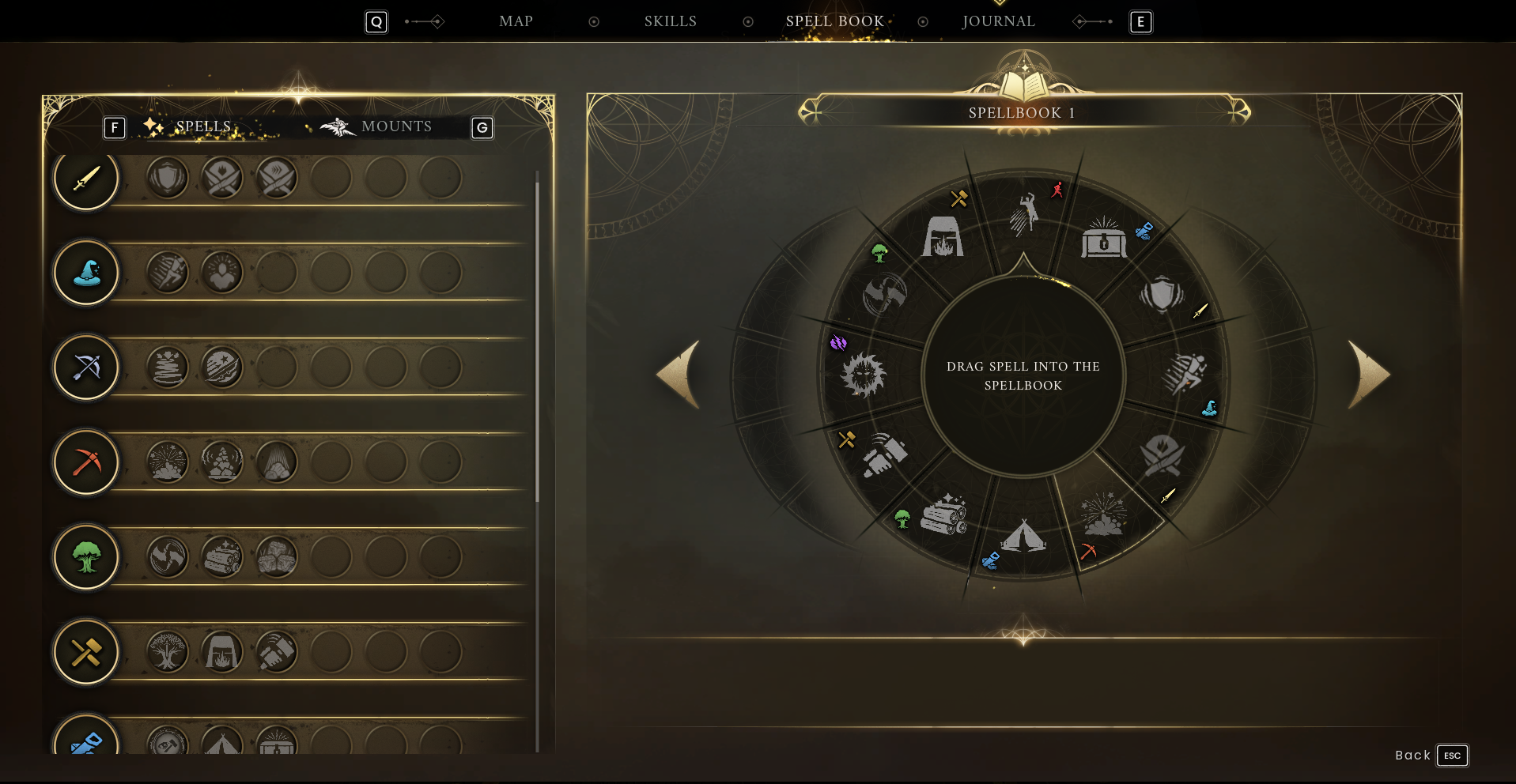 Main spells interface
Players can also drag and drop several spells from the spell's main menu if they have the required level. The quick spells menu can only hold up to 12 spells and can be rearranged at any time.
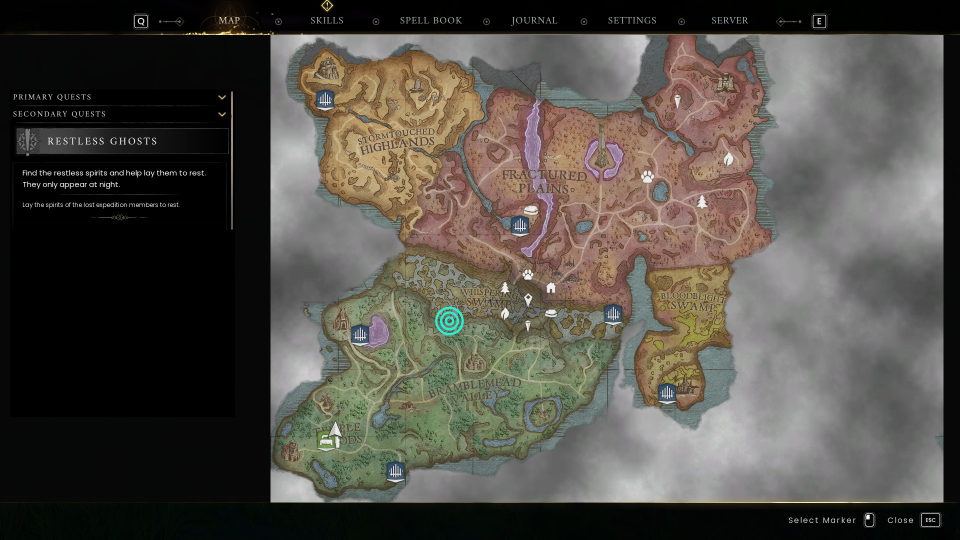
Players can view and mark the map with up to 100 of the following icons:
| Map icon | indication |
|---|---|
.png)
|
Displays where the current player is on the map. |
|
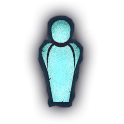
Shown if the player clicks on a secondary quest and must talk to the next NPC. |
|
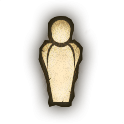
Shown if the player clicks on a primary quest and must talk to the next NPC. |
.png)
|
Shown if the player clicks on the paw-like icon upon right-clicking the map. |
.png)
|
Shown if the player clicks on the house-like icon upon right-clicking the map. |
.png)
|
Shown if the player clicks on the stone-like icon upon right-clicking the map. |
.png)
|
Shown if the player clicks on the leaf-like icon upon right-clicking the map. |
.png)
|
Shown if the player clicks on the tree-like icon upon right-clicking the map. |
.png)
|
Shown if the player clicks on the pin-like icon upon right-clicking the map. |
.png)
|
Shown if the player selects the ping option by right-clicking on a region on the map. |
.png)
|
Shown if the player is within the pinged area. |
Update history
This information is based on the changelogs of the game.
- New building or spell notification no longer persists even when read.
- Mining nodes no longer use bloody hitsplats.
- A host can't see client hitsplats anymore.
- Fixed crash and stability with UI updates.
- Hitsplats now show "Bleed" status effect proc.
- The compass will now showcase player positions in multiplayer worlds.
- An issue was fixed where the clock widget would display the wrong time.
- The clock widget will now show nighttime correctly. Note that old character saves will still experience this bug, but new characters will no longer encounter this issue.
- Clickboxes on items dropped to the ground were enlarged.
- A day/night widget was added to the top right of the player's screen.
- Continued localisation fixes for missing translations and cut-off text.
- Many Localisation improvements for unlocalised strings, text cut-offs, and overlaps.
Źródło: Zobacz na oficjalnej wiki (Treść pochodzi z RuneScape Wiki, CC BY-NC-SA 3.0)